


























GetMyInvoices MCP server

Your AI now sees the whole picture: Invoices, bank accounts, suppliers.

The GetMyInvoices MCP server connects your financial data directly to your AI, for example ChatGPT, Claude, or Microsoft Copilot. Your AI brings together receipts, payments, approvals, and suppliers and answers your questions with your real numbers: What’s still outstanding? What has become more expensive? What’s out of the ordinary? No export, no Excel.

  • Read-only access
  • Everyone sees only their own data
  • Included in every plan at no extra cost
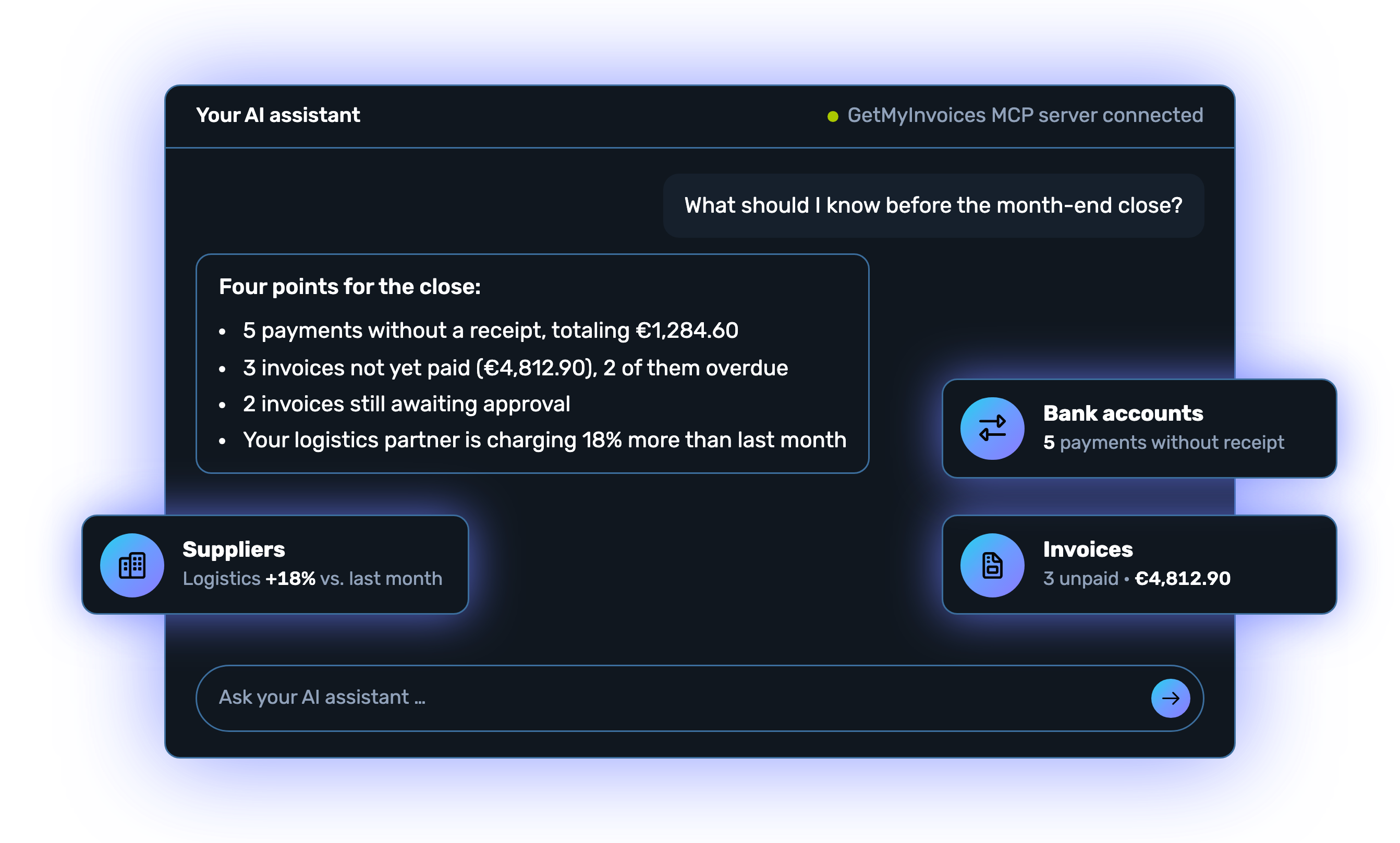
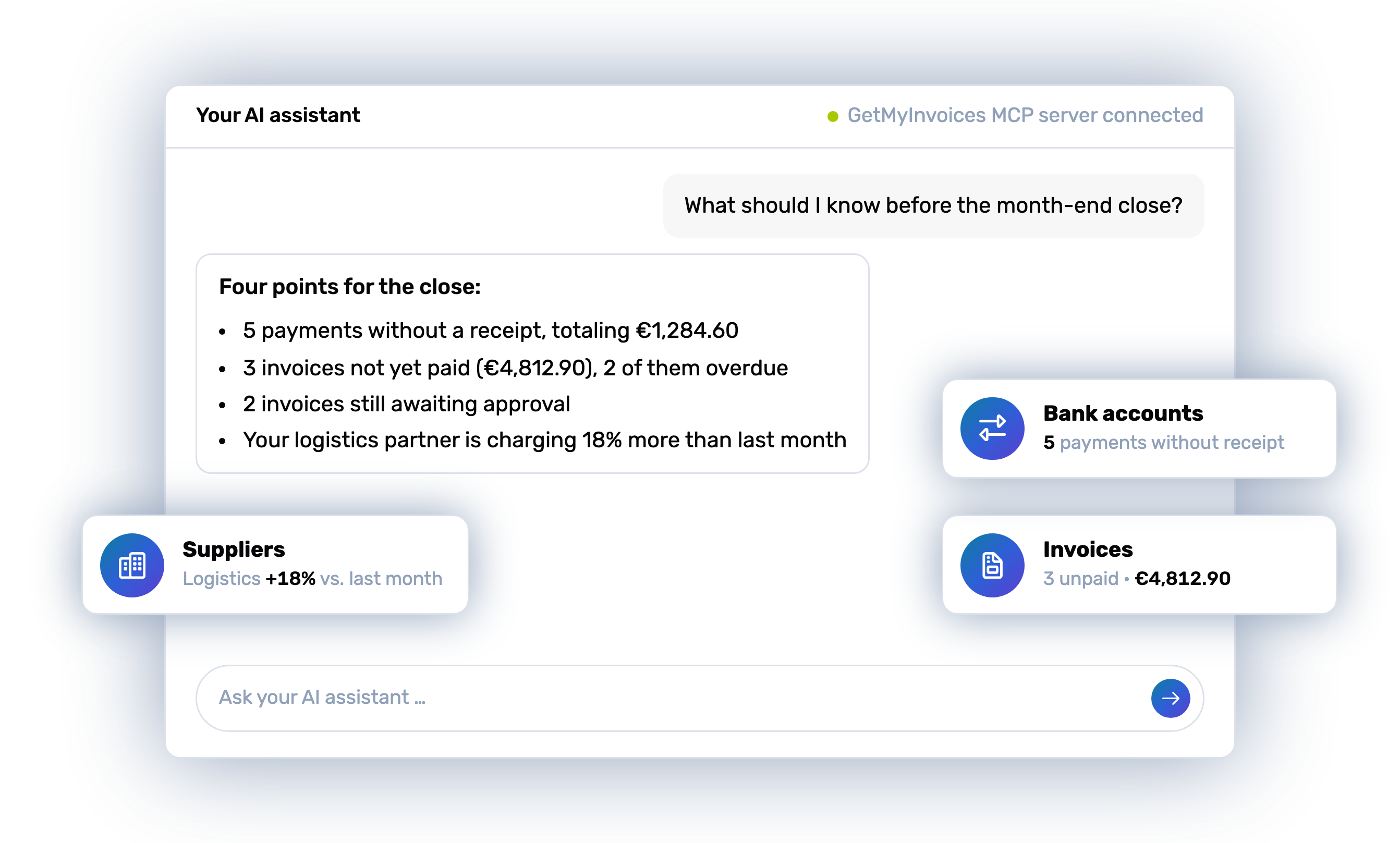
Chat with the AI assistant: Asked “What should I know before the month-end close?”, the AI points out missing receipts, unpaid invoices, pending approvals, and a price jump. Next to it, the areas it read: invoices, bank accounts, suppliers.

Over 20,000 customers already trust us.

The essentials at a glance

The GetMyInvoices MCP server connects your GetMyInvoices account to your AI. You ask your question wherever you already work with your AI and get an answer based on your real data. The data comes from GetMyInvoices; the interpretation and explanation come from your AI.

  • AI apps: You need an AI that supports MCP, for example ChatGPT, Claude, Microsoft Copilot, or Langdock.
  • Data scope: 35 data access points across six areas, from invoices and receipts through bank accounts and approvals to suppliers and master data.
  • Setup: Add GetMyInvoices as a connector in your AI assistant, sign in with your GetMyInvoices account and approve read-only access.
  • Permissions: Everyone sees only their own data, and bank data only with banking permission.
  • Price: Included in every plan at no extra cost, even during the trial period.

Three steps to connect your AI

You add GetMyInvoices as a connector in your AI assistant, sign in with your GetMyInvoices account and activate the connection.

  1. Step 1: Add GetMyInvoices to your AI assistant

    In your AI assistant, you add GetMyInvoices as a connector. For this, you need the MCP server address.
    1. In your AI assistant, for example Claude or ChatGPT, open the section for connectors, integrations or MCP servers. You’ll usually find it in the settings under an item such as Connectors, Integrations or MCP servers.
    2. Choose the option to add a new connector or MCP server, which some AI assistants call a custom connector.
    3. Enter a name of your choice, for example “GetMyInvoices”, and add the MCP server address.
    MCP server address https://api.getmyinvoices.com/accounts/mcp-v1/public/index.php
  2. Step 2: Sign in with your GetMyInvoices account

    You’ll be redirected to the GetMyInvoices sign-in.
    1. Sign in with your usual GetMyInvoices account.
    2. Confirm the read-only access in the consent dialog.

    Good to know: Your AI assistant only sees the data your user account is authorized to access in GetMyInvoices.

  3. Step 3: Activate the connector

    Depending on your AI assistant, the connection is active right away. Otherwise, activate the connector once more in your connector list before you use it in a chat.

    That completes the setup: you can now use GetMyInvoices with your AI assistant and ask it your first questions. We hope you enjoy it.

What you need

A GetMyInvoices account (a trial account works too) and an AI that supports MCP.

Read-only access

Your AI reads data. It doesn’t create, approve, or link anything.

Help with setup

You’ll find detailed instructions in the Help Center.

Questions from your industry. Answers from your numbers.

Every industry has its own questions. Your AI brings together invoices, bank accounts, and suppliers and answers them with your real numbers. Six examples you can ask exactly as written.

Chef concentrating as he plates a dish in a restaurant kitchen

Hospitality

Know which ingredients are eating into your margin.

  • “How has our price per liter of milk changed since January?”
  • “Which ten ingredients have gone up in price the most over the past year?”
  • “How much do we spend on food per month compared to card payments?”

Three agency colleagues discussing drafts at a long wooden table

Agencies

See which client is really worth it.

  • “What did client Miller cost us in freelancers and licenses this year, and how much did they pay?”
  • “For which clients are external costs above 60% of incoming payments?”
  • “Which freelancers have raised their day rates?”
Software developer with glasses working at two monitors in an office with a brick wall

SaaS companies

Notice when infrastructure grows faster than revenue.

  • “How have our hosting and AI API costs changed relative to our Stripe payouts?”
  • “Which cloud provider’s costs grew the most last quarter?”
  • “Which tools have more paid licenses than we have employees?”
Craftsman in his workshop leaning over a plan on the workbench

Skilled trades

Keep your fleet and materials under control before you write your next quote.

  • “What does each van cost us per month: fuel card, leasing, repairs?”
  • “How has the wholesaler’s price for copper pipe changed since last fall?”
  • “Which material suppliers have raised their prices the most this year?”
Online store owner packing a shipping box in the warehouse, with a tablet next to her

E-commerce

See what’s left over from every sale.

  • “What percentage of our revenue goes to shipping, marketplace fees, and payment providers?”
  • “How have our shipping costs changed since the last price increase?”
  • “Which platform fees are new this year?”
Nurse in blue scrubs smiling as she looks at her tablet

Care services and medical practices

Keep salaries, contributions, and invoices on track all month.

  • “What payments are coming up by the 28th: subscriptions, recurring costs, and invoices due?”
  • “How have salary payments and social security contributions changed relative to incoming payments?”
  • “Which invoices can we pay with an early payment discount without putting salaries at risk?”

What your AI can access

35 data access points across six areas, the same as in the GetMyInvoices API. Your AI reads; it doesn’t create or approve anything.

Invoices and receipts

All documents with complete invoice data, attachments, e-invoice contents (Factur-X, ZUGFeRD, Peppol XML), including deleted documents.

Bank accounts and transactions

All accounts, transactions per account and across accounts, and which invoice belongs to which payment.

Workflows and approvals

Workflows with all steps, individual approvals, and pending approvals per person.

Companies, suppliers, and portals

Connected companies, suppliers, and portals with all details.

Account and master data

Account data, tags, VAT rates, currencies, countries, connected online and desktop portals, API status.

Users and operations

Users, notifications, payment runs, syncs, email accounts, support tickets.

Your question. Your answer.

Everyday examples: what you ask, which data your AI reads in GetMyInvoices to answer, and what you can expect as an answer.

You ask What your AI reads What you can expect
“Which invoices haven’t been paid yet?” Invoices and receipts Bank accounts and transactions A list with supplier, amount, due date, and total.
“Which suppliers aren’t sending e-invoices yet?” Invoices and receipts Suppliers The suppliers whose invoices still arrive as PDF or on paper.
“Which documents haven’t been transferred to accounting yet?” Invoices and receipts Syncs The outstanding documents, sorted by sync.
“How much money came in and went out this month?” Bank accounts and transactions Incoming payments, outgoing payments, and the balance of your bank accounts.
“Why have our costs gone up?” Invoices and receipts Suppliers A comparison with the previous period, showing the biggest cost drivers.
“Which suppliers have become more expensive?” Invoices and receipts Suppliers The suppliers with their percentage price change.
“Which subscriptions are we actually paying for?” Invoices and receipts Bank accounts and transactions All recurring invoices with the annual costs per vendor.
“Which portals haven’t delivered any invoices recently?” Companies, suppliers, and portals Portals with no new documents or with a connection problem.
“What should I know before the month-end close?” Invoices and receipts Workflows and approvals Bank accounts and transactions A summary: missing receipts, pending approvals, unpaid items, and outliers.

Sample answers. What exactly your AI returns depends on your data in GetMyInvoices and on your AI.

Frequently asked questions

If you have any more questions about GetMyInvoices, visit our Help Center.

No. MCP access only allows retrieving and analyzing data. Your AI assistant cannot use it to create, change, approve or delete documents, bookings, accounts or settings.

You need an AI application that supports MCP, for example ChatGPT, Claude, Microsoft Copilot, or Langdock.

The MCP server is included in every GetMyInvoices plan at no extra cost, even during the trial period.

You add GetMyInvoices to your AI assistant, for example Claude or ChatGPT, as a connector: in the connector or MCP settings, you create a new, possibly custom connector and enter a name and the server URL. Then you sign in with your GetMyInvoices account, confirm the read-only access and activate the connector if it isn’t active right away. You can find more information in our Help Center.

With some AI clients, a new connector can initially only be added for the entire organization by a person with administrator rights or by the workspace owner. It then appears in the connector list of all members, and each person only needs to activate it there for themselves. If you don’t see the MCP option at all, please contact your administrator.

Your AI assistant has around 35 functions that give it direct, structured access to your real GetMyInvoices data, in areas such as:

  • Companies: the companies you have set up and their master data
  • Documents: invoices, receipts and other documents in your account
  • Tickets: open and processed requests
  • Bank accounts and transactions: linked accounts and account movements
  • Workflows: approval processes and their status
  • Payment runs: payment runs and their details
  • Users: members of your account
  • Notifications: current messages from your account
  • Permissions are checked live: your AI assistant only sees the data your user account is authorized to access in GetMyInvoices.
  • Banking access only if available: bank accounts and transactions are only shown if this feature is actually enabled in your account.

The data comes from GetMyInvoices; your AI provides the interpretation and explanation. It does the math, makes comparisons, and recognizes connections based on its own knowledge.

Yes. You can test GetMyInvoices with no obligation and no risk. The MCP server is included in the trial period.